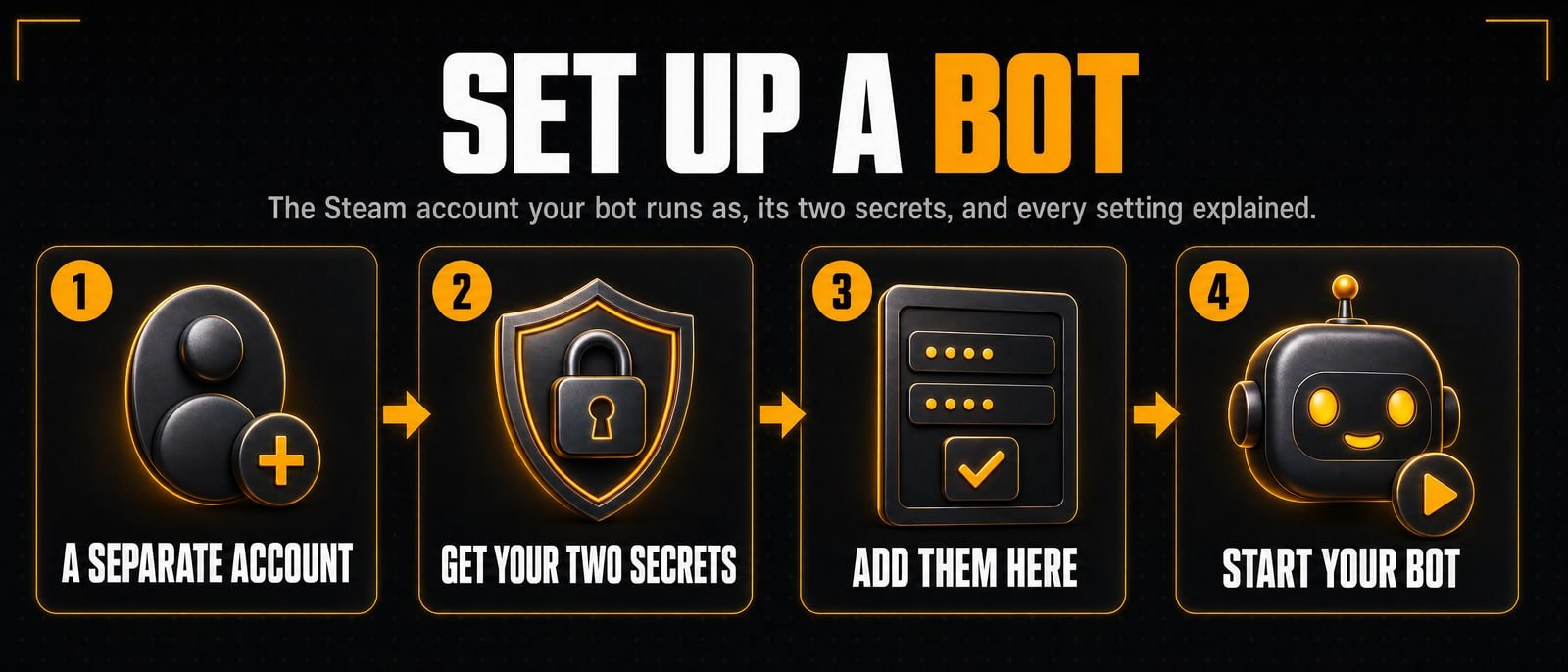
Set up your Steam trading bot
Everything you need to get our level-up bot running: the bot account, the two Steam secrets, and what every setting does. It takes about 15 minutes, most of it on Steam’s side.
Installing the bot on your server? Follow the self-host install guide: one command installs it.
Trying the free, open-source bot first? It needs the same separate Steam account and the same two secrets, from steps 1 and 2. Its own settings are in its README.
1. Before you start
- A separate Steam account for the bot. Never use your main account. The bot holds stock and keys, and its login lives on the server that runs it.
- Not a limited account. Steam limits new accounts until $5 has been spent on them. A limited account cannot trade properly.
- Steam Guard turned on for that account with Steam Desktop Authenticator, so you can read its two secrets. Step 2 shows how.
- Access to the account’s email, and a phone number if Steam asks for one while adding the authenticator.
- A licence for the bot script, bought from Bot Script in your SteamTradeX account, and a Linux server to run it on.
2. Get your shared secret and identity secret
A trading bot needs two values from the account’s mobile authenticator. Both are long codes that usually end in =.
| Secret | What it does |
|---|---|
| Shared secret | Makes the Steam Guard login codes, so the bot can sign in by itself. |
| Identity secret | Confirms trade offers, so trades go through without you pressing confirm on a phone. |
The official Steam mobile app does not show these. You need a tool that keeps the authenticator on your computer and saves it in a .maFile. We recommend Steam Desktop Authenticator (SDA). It is open source, it is the tool most bot owners already use, and it has a normal window with buttons, so there is nothing to type into a command line.
Option A: a new authenticator with Steam Desktop Authenticator (Windows)
- Open the SDA releases page and download the latest
.zip. Only download it from that page. If Windows asks for .NET 8 when you start the program, install it from Microsoft and start it again. - Extract the zip into a folder you will keep, for example
Documents\SDA. Do not run it from inside the zip. - Run
Steam Desktop Authenticator.exeand click Setup New Account. - Sign in with the bot’s login name and password, and follow the steps. Steam sends a code by text message or email on the way.
- It shows a revocation code (it looks like
R12345). Write it down and keep it offline. It is the only way back into the account if you lose the authenticator. - When it offers to set a passkey (encryption), you can skip it for now. With a passkey set, the file cannot be read in Notepad.
- Open the
maFilesfolder next to the program. Open the bot’s.maFilewith Notepad. - Find
"shared_secret"and"identity_secret". Copy each value between the quotes, without the quotes.
Once the two values are saved on SteamTradeX you can turn encryption on in SDA (Manage Encryption) to protect the file on your computer.
Option B: you already use Steam Desktop Authenticator
Your .maFile is in the maFiles folder next to the program. If you set a passkey, remove it first with Manage Encryption (you can set it again afterwards). Open the file with Notepad and copy "shared_secret" and "identity_secret" as above.
Option C: the authenticator is on the Steam app on your phone
The phone app keeps the secrets to itself, so move the authenticator to Steam Desktop Authenticator: remove it from the phone, then follow Option A. Steam may hold trades for a while after an authenticator is removed, added or moved. Read the notice Steam shows before you confirm, and plan for it.
On Mac or Linux
Steam Desktop Authenticator is for Windows. On Mac or Linux, steamguard-cli does the same job from the terminal: run steamguard setup, keep the revocation code, and find the .maFile in ~/.config/steamguard-cli/maFiles.
3. Every setting explained
You change these in your bot’s dashboard. Coming from your own bot script? The .env name column shows what each setting was called in the .env file, so you can copy your values across.
Steam account
The bot's own Steam login and its Steam group.
| Setting | What it does | Default | .env name |
|---|---|---|---|
| Steam account name | The login name of the account the bot trades from. Use an account kept only for trading stock, never your own main account. | Empty | STEAM_USERNAME |
| Steam password | Stored encrypted. It is never shown back to you and never appears in any log. | You enter it | STEAM_PASSWORD |
| Mobile authenticator shared secret | Lets the bot sign in on its own. To check you entered it correctly, compare the live code shown on this page against your phone. | You enter it | STEAM_SHARED_SECRET |
| Mobile authenticator identity secret | Lets the bot confirm its own trade offers. If this is wrong, every trade will sit unconfirmed and nothing will tell you why, so it is worth testing. | You enter it | STEAM_IDENTITY_SECRET |
| Steam Web API key | Used for reading trade offers. You can revoke and replace it at any time without restarting the bot. | You enter it | STEAM_API_KEY |
| Steam group ID | The group customers are invited to. Leave blank if you do not have one. | Empty | STEAM_GROUP_ID |
| Steam group link | Shown to customers who ask about the group. | Empty | STEAM_GROUP_LINK |
| Invite customers to the group | Sends a group invite after a successful trade. | Off | STEAM_GROUP_MAKE_INVITES |
| Decline group invites sent to the bot | Stops the bot being pulled into other people's groups. | On | STEAM_GROUP_REFUSE_INVITES |
Bot identity
Its name, its owner and admins, and its commands.
| Setting | What it does | Default | .env name |
|---|---|---|---|
| Display name | What the bot calls itself on Steam. Leave blank to keep the account's current name. | Empty | BOT_NAME |
| Owner Steam ID | Who customers are pointed at when they ask to speak to a person. | Empty | BOT_OWNER_ID64 |
| Admins | Steam IDs allowed to use admin commands. Everyone listed here can move your stock, so keep it short. | None | BOT_ADMINS |
| Disabled commands | Commands the bot will not answer. Anything listed here replies that it is turned off rather than staying silent. | None | BOT_IGNORE_COMMANDS |
| Tutorial link | Sent when someone asks how to trade with the bot. | Empty | BOT_TUTORIAL |
| Default language | The language used until a customer picks their own. | en | BOT_DEFAULT_LANGUAGE |
| Paused until | Set by the pause command. The bot stays online but turns trades away until this time passes. | 0 | New |
Currencies
What the bot accepts as payment.
| Setting | What it does | Default | .env name |
|---|---|---|---|
| Accept TF2 keys | Turn off to stop trading in keys without changing your rates. | On | BOT_ACCEPTED_CURRENCIES_TF2 |
| Accept gems | Turn off to stop trading in gems without changing your rates. | On | BOT_ACCEPTED_CURRENCIES_GEMS |
Rates
How many sets it gives or takes per TF2 key or per gems.
| Setting | What it does | Default | .env name |
|---|---|---|---|
| Sets you pay one key for | How many card sets you hand over for one TF2 key. This is what a customer gets when they sell you a key. | 0 | RATES_TF2_BUY |
| Sets you want for one key | How many card sets a customer must give you to receive one TF2 key. Keep this below the buy rate or you lose money on every round trip. | 0 | RATES_TF2_SELL |
| Gems you pay per set | How many gems you hand over for one card set. | 0 | RATES_GEMS_BUY |
| Gems you want per set | How many gems a customer must give you for one card set. Keep this above what you pay. | 0 | RATES_GEMS_SELL |
Stock
How the bot holds and sells its sets.
| Setting | What it does | Default | .env name |
|---|---|---|---|
| Most sets to hold per game | Once you hold this many sets of a game the bot stops buying more of it. Stops your stock filling up with one worthless game. | 100 | BOT_MAX_STOCK |
| Trade foil cards | Handle foil sets instead of ordinary ones. | Off | BOT_FOILMODE |
| Trade event cards | Handle the limited card sets Steam issues during a sale or event. | Off | BOT_EVENTMODE |
| Event app ID | Which event the cards belong to. Only used when event cards are turned on. | Empty | BOT_EVENTMODE_APPID |
| Repack gems before trading | Works around a Steam fault that cancels gem trades. Leave this on unless you are told otherwise. | On | BOT_PACK_AND_UNPACK_GEMS |
Limits
The most a single customer can buy, sell or reach at once.
| Setting | What it does | Default | .env name |
|---|---|---|---|
| Most sets a customer can buy at once | Caps a single trade. A customer wanting more simply makes a second one. | 500 | USER_PERMISSIONS_MAX_SETS_BUY |
| Most sets a customer can sell at once | Caps a single trade in the other direction. | 500 | USER_PERMISSIONS_MAX_SETS_SELL |
| Most sets in a sets for sets swap | Set to 0 to turn swapping off entirely. | 50 | USER_PERMISSIONS_MAX_SETS4SETS |
| Highest customer level to serve | Above this level a customer already owns most cards, so a trade would deliver very little. 0 removes the limit. | 6666 | USER_PERMISSIONS_MAX_LEVEL |
Friends list
Keeping the friends list from filling up.
| Setting | What it does | Default | .env name |
|---|---|---|---|
| Days before a customer counts as inactive | Used when the friends list is full and someone has to be removed. | 30 | USER_PERMISSIONS_MAX_INACTIVE_DAYS |
| Start clearing the friends list at | Steam caps how many friends an account can have. When the list gets this full the bot removes inactive customers. 0 turns the clearing off. | 90 | BOT_FRIENDS_LIST_LIMIT |
| Never remove customers above level | Your best customers are the high level ones. This keeps them on the list even when it is being cleared. | 1337 | BOT_FRIENDS_LIST_RETENTION_LEVEL |
Who the bot trades with
Who gets turned away, and a few special trades.
| Setting | What it does | Default | .env name |
|---|---|---|---|
| Refuse trade banned accounts | An account with a trade ban cannot complete a trade anyway. | On | USER_FILTERS_TRADEBAN |
| Refuse VAC banned accounts | A VAC ban is about cheating in a game and says nothing about whether someone can trade, so this is off by default. | Off | USER_FILTERS_VACBAN |
| Refuse limited accounts | A limited account has never spent money on Steam. They can still trade cards. | Off | USER_FILTERS_LIMITED_ACCOUNT |
| Lowest customer level to accept | Turns away brand new accounts. 0 accepts everyone. | 0 | USER_FILTERS_STEAM_LEVEL |
| Trade with customers who have a hold | A trade hold means Steam keeps the items for up to 15 days before delivering them. Turning this on means waiting that long to receive what you bought. | Off | BOT_HANDLE_TRADE_HOLDS |
| Block people who spam the bot | Blocks after repeated warnings. | On | BOT_BAN_SPAMMERS |
| Accept gift offers | Lets the bot accept a trade offer that asks for nothing in return. | Off | BOT_ACCEPT_DONATIONS |
| Accept stock from suppliers | Lets people you have marked as suppliers send you sets. | On | BOT_HANDLE_SUPPLIERS |
| Ask customers for a Steam API key | A last resort. Most shops never need it, and asking mid trade loses customers. If inventory reads are failing, add a paid inventory service under Providers first. | Off | BOT_HANDLE_CUSTOMER_STEAM_API_KEY |
Supply
Topping up stock from your own storage accounts. On a timer, or when you send !RESTOCK, the bot sends each account an offer that only takes sets it can use and gives nothing; you accept it on that account. People you mark as suppliers with !ADDUSER can ask for the same kind of offer with !SUPPLY. Offers sent to the bot are still declined, and restocks never count as profit. Your bot can also buy sets from SteamTradeX Card Suppliers who take bot orders, paying TF2 keys at the rate they list: off unless you switch it on and choose the suppliers, at most the keys you allow per order and per day, never at a rate that would not sell on at a profit, and your keys leave only in the same trade that brings their sets.
| Setting | What it does | Default | .env name |
|---|---|---|---|
| Ask suppliers for stock automatically | Sends a trade offer to your suppliers asking them to top you up. | Off | SUPPLY_REQUESTER_ENABLED |
| Sets to request each time | How much to ask for in one request. | 100 | SUPPLY_REQUESTER_AMOUNT |
| Hours between requests | How long to wait before asking again. | 24 | SUPPLY_REQUESTER_INTERVAL |
| Ignore the stock ceiling when restocking | Takes stock from suppliers even for games you already hold the maximum of. | Off | SUPPLY_REQUESTER_IGNORE_LIMIT |
| Supplier Steam IDs | The accounts to ask for stock. | None | SUPPLY_REQUESTER_TARGETS |
| Supplier API keys | Optional. Only needed if a supplier's inventory is private to you. | You enter it | SUPPLY_REQUESTER_TARGETS_API_KEY |
Inventory and price services
Services the bot uses to read inventories and report stats.
| Setting | What it does | Default | .env name |
|---|---|---|---|
| SteamTradeX Inventory API key | Reads customers' inventories through SteamTradeX, before any other service. Starts inv_. Buy requests at steamtradex.com/dashboard/api. | You enter it | STEAMTRADEX_API_KEY |
| Keys for other inventory and listing services | Optional. If you already pay for another inventory reading service, or list your bot on other sites, you can add their keys and switches in your bot’s panel. | Empty | As in your .env |
Notifications
Where the bot sends its own messages to you.
| Setting | What it does | Default | .env name |
|---|---|---|---|
| Telegram bot token | Lets the bot message you on Telegram when something needs your attention. | You enter it | TELEGRAM_TOKEN |
| Telegram chat ID | Which conversation to message. | Empty | TELEGRAM_CHAT_ID |
| Tell admins about completed trades | A message on Steam after every finished trade. | On | BOT_ADMIN_NOTIFICATION |
| Discord invite | Sent when a customer asks where to get help. | Empty | DISCORD_INVITE |
Profile and status
How the bot presents itself on Steam.
| Setting | What it does | Default | .env name |
|---|---|---|---|
| Show your rates in the bot's name | Puts the current rate in the display name so people see it before messaging. | Off | BOT_RATES_IN_BOT_NAME_ENABLED |
| Which rate to show in the name | TF2 | BOT_RATES_IN_BOT_NAME_CURRENCY | |
| Comment on a customer's profile after trading | Public proof that you trade, which is how new customers decide you are real. | On | BOT_COMMENT_AFTER_TRADE_ENABLED |
| Hours before commenting on the same profile again | Stops a regular customer's profile filling up with your comments. | 48 | BOT_COMMENT_AFTER_TRADE_INTERVAL |
Logging
How much the bot records.
| Setting | What it does | Default | .env name |
|---|---|---|---|
| Keep logs | On | APP_LOGGER_ENABLED | |
| How much to log | Turn this up to debug only while chasing a problem. It is noisy. | info | APP_LOGGER_LEVEL |
Bot's own API
The bot's own API access (not the Listing API or the Inventory API).
| Setting | What it does | Default | .env name |
|---|---|---|---|
| Internal API token | Used by your website to talk to this bot. Rotating it here takes effect without a restart. | You enter it | New |
Not in the list: REDIS_HOST, REDIS_PORT, BOT_ID64 and BOT_LIST. They are set up for you, so you no longer need them.
4. Keep it safe
- Your shared secret and identity secret are as good as your password. Anyone who has them, with the password, can sign in and confirm trades. Only ever enter them in your own bot's installer or dashboard.
- We never ask for them in a message. Nobody from SteamTradeX will ask for your password, secrets or
.maFileon Discord, Telegram, Steam chat or email. - Back up your maFiles folder and your revocation code, somewhere offline. Lose both and only Steam Support can help.
- Only download Steam Desktop Authenticator from its GitHub releases page. Fake copies on other sites are a common way accounts get stolen.
- Keep the bot account separate from your main account, and do not keep anything on it you cannot afford to lose.
Stuck? Ask in our Discord and we will help, without ever needing your secrets.