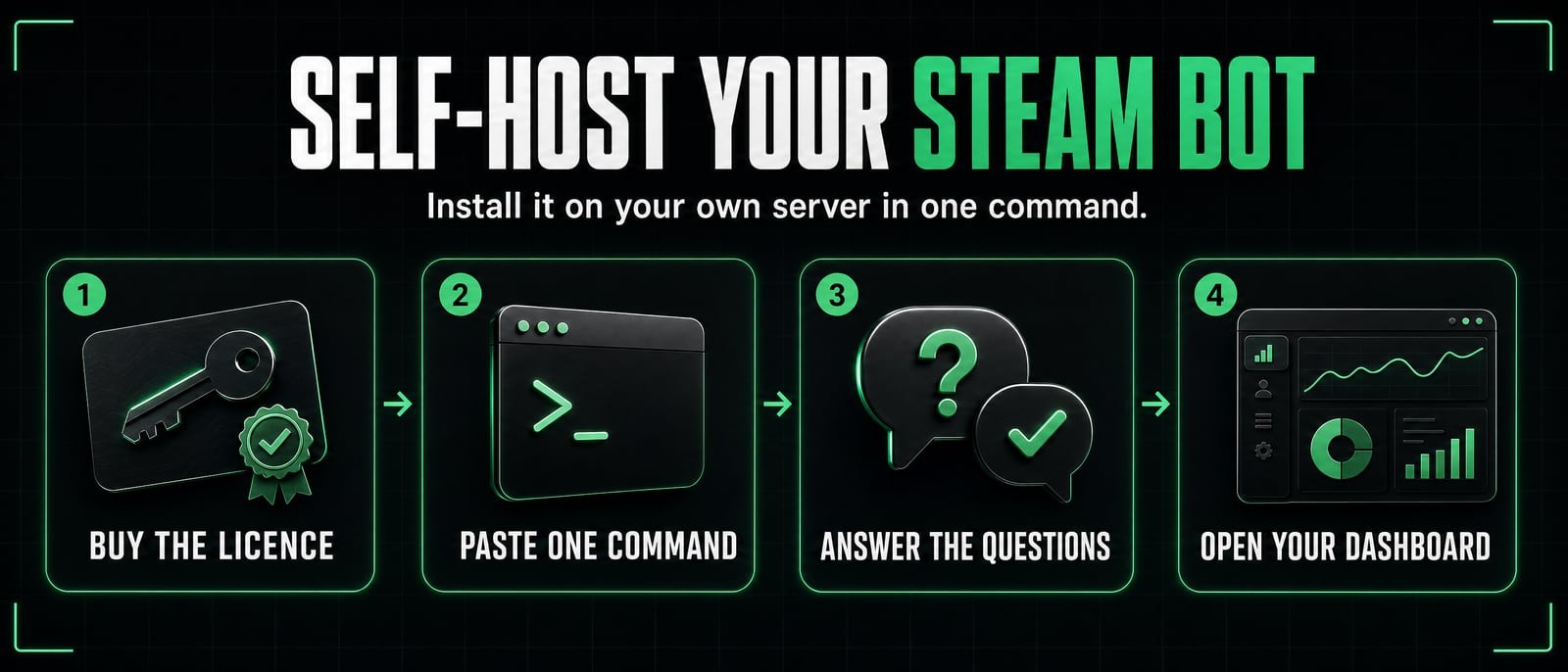
Self-host your Steam trading bot
Run our Steam trading bot on your own server. You do not need to know Linux. One step at a time: copy a line, paste it, see what you should see. About fifteen minutes.
Try the dashboard first. The live demo is the same dashboard you get, with sample data, in your browser.
Open the live demoBefore you start
Five things. With them ready, the install takes about 15 minutes. Press one to see what it means.
A licence for the bot
It costs 30 TF2 keys from your Key Bank, paid once, with every update included. Open your Bot Script page, press the Buy button and confirm.
A rented server
A server is a computer in a data centre that stays switched on day and night, so your bot keeps trading while your own computer is off. You rent a small one by the month. Providers call it a VPS. Step 1 says what to choose, and which server to pick goes into detail.
A separate Steam account for the bot
Not your main account. It must be set up in Steam Desktop Authenticator: a free Windows program, SDA for short, that makes the account's Steam Guard codes on your computer in place of a phone. The bot needs what SDA saves to sign in and to confirm trades by itself. How to set up SDA for the bot's account. On a Mac, the same guide names a program that does the same job.
Did you set SDA up for the bot's account less than 7 days ago? Steam holds a new authenticator's trades for a while. You can still install today: the bot notices the hold, waits, and starts trading by itself when Steam lifts it.
Your own Steam profile link
It tells the bot that you are its owner. Open your own profile on Steam and copy the address at the top of the page. A custom link (one with /id/ and your own name in it) works too: the installer shows whose profile it is, and you type y if it is yours.
Or use your Steam ID: a number of 17 digits that starts with 7656119. Sign in to Steam in your browser and it is shown under your account name on this page:
Two-factor sign-in on your SteamTradeX account
Making your install command asks for a 6-digit code from an app on your phone. Not set up yet? Do it on your account page.
How do you want to install it?
Both ways end with the same bot. You can switch at any time.
Six steps, about 15 minutes. You do not need to know Linux: you copy a few lines and answer a few questions.Eight steps, about 20 minutes. Steps 1 to 3 are the same as the easy way. From step 4 it is different: nothing runs on your server until you have checked it.
Step 1 of 68
Step 1Rent a small server
- Pick a provider: a company that rents out servers, which are computers in a data centre that never switch off. Any well known one works. Which server to pick says what to look for.
- When it asks which system to put on the server (it may call this the operating system or the image), choose Ubuntu 24.04.
- Choose the smallest size. It is enough for one or two bots.
- Pay, then wait for the provider's email. It gives you three things: an IP address (the server's address on the internet: four numbers with dots between them, such as
203.0.113.10), a login name (usuallyroot) and a password. Some providers show them on the server's page on their website in place of an email. Keep them at hand for the next step.
Stuck? Ask us on Discord with a screenshot of what you see. Cover any password, code or licence key in it first.
Step 2 of 68
Step 2Connect to your server
A server has no screen. You tell it what to do by typing lines of text into a window on your own computer. On Windows that window is called PowerShell. On a Mac it is called Terminal. Both come with the computer, so there is nothing to install.
Type the IP address from the provider's email into the first box. We write the lines on this page for you. What you type stays on this page and is sent nowhere.
This line connects your computer to the server:
ssh <user>@<server>
- Press Copy on the line above.
- Open the window. On Windows: press the Start button, type
PowerShelland press Enter. On a Mac: press Command and Space, typeTerminaland press Enter. - Click inside the window, then right-click. That pastes the line. (On a Mac, press Command and V.) Then press Enter.
- If it asks
Are you sure you want to continue connecting?, typeyesand press Enter. - It asks for the password. Type the password from the provider's email and press Enter. Nothing shows while you type it, not even dots. That is normal.
What you should see
A few lines of welcome text from the server. The last line looks like root@my-vps:~# and waits for you to type.
Keep this window open. From now on this guide calls it the server window: whatever you paste into it happens on the server, not on your computer.
Seeing something else?
If you see something else
Connection timed out: the IP address is wrong, or the server is still being made. Check the address in the provider's email, wait a few minutes and try again.Permission denied: the password or the login name is wrong. Most providers let you set a new password on the server's page on their website.You are required to change your password: the provider wants you to choose your own. Type the current password once more and press Enter, then a new one twice. Write the new one down.sshis not recognized: your Windows has not been updated for years. Run Windows Update, then try again.
Stuck? Ask us on Discord with a screenshot of what you see. Cover any password, code or licence key in it first.
Step 3 of 68
Step 3Send the bot's Steam Guard file to your server
Steam Guard is the code Steam asks for whenever an account signs in. Your bot has to make those codes by itself, and confirm its own trades. Everything it needs for that is in one small file that Steam Desktop Authenticator (SDA) saved when you set it up for the bot's account. The file's name ends in .maFile.
On Windows the file is in a folder named maFiles, in the same folder as the SDA program. Its name is the account's number, for example 76561198000000000.maFile.
The easiest way to give it to the installer is to copy that file to your server now. The installer then finds it by itself, and you never have to open it.
Treat this file like a password. Whoever has it can sign in to the bot's Steam account. Send it to nobody. We will never ask you for it.
This line copies the file from your computer to the server. It is already written with the address you typed in step 2:
scp *.maFile <user>@<server>:
- On your computer, open the folder where you keep SDA. Then open the
maFilesfolder inside it. - Click the address bar at the top of that folder window (the long box that shows the folder's name). Type
powershelland press Enter. A second PowerShell window opens, already inside that folder. This one works on your own computer. Leave the server window from step 2 as it is. - Press Copy on the line above. Right-click in the new window to paste it, and press Enter.
- If it asks
Are you sure you want to continue connecting?, typeyesand press Enter. Then type the server's password, the same one as in step 2, and press Enter. Nothing shows while you type. - When it has finished, close this second window. You do not need it again.
What you should see
one line per file, each ending in 100%.
Seeing something else?
If you see something else
No such file: the terminal is not in themaFilesfolder. Open it there.Permission denied: use the same user and password (or key) as when you log in withssh.- SDA encrypts its files: remove the encryption in SDA first (Manage Encryption, then leave the passkey empty), then copy again.
The line sends every .maFile in the folder. The installer shows the files as a numbered list and asks which one is for this bot: you type its number, never a path. Only the one you pick is used. Once the bot has saved what it needs from that file, the installer offers to delete it from the server again.
On a Mac, steamguard-cli keeps the file in ~/.config/steamguard-cli/maFiles. Open a second Terminal window, type cd ~/.config/steamguard-cli/maFiles and press Enter, then paste the same line.
I would rather not copy the file: type its two codes in by hand
The installer also accepts the two secret codes from inside the file, typed in by you. Skip the copying above and do this in its place:
- In the
maFilesfolder, right-click the bot's.maFile, choose Open with, then Notepad. - Find
"shared_secret"and"identity_secret". After each one comes a code between quotes: 28 characters, ending in=. - Go on with the next steps. When the installer asks
Steam Guard [1]:, type2and press Enter. - It asks
Shared secret:. Copy the first code without its quotes, right-click in the server window to paste it, and press Enter. Nothing shows as you paste. Do the same forIdentity secret:.
Notepad shows text you cannot read? SDA has locked the file with a passkey. In SDA, open Manage Encryption and leave the passkey empty, then open the file again.
Stuck? Ask us on Discord with a screenshot of what you see. Cover any password, code or licence key in it first.
Step 4 of 6
Step 4Get your install command and paste it
The install command is one long line. It downloads the installer, checks that the bot really comes from us, sets it up and starts it. Yours is made for you on your Bot Script page, because it carries a one-time code that stands for your licence.
- Open your Bot Script page in a new browser tab. Under Install on your server, The easy way is already chosen there, as it is here.
- Go down to step 3 on that page and press Make install command. It asks for the 6-digit code from the two-factor app on your phone, the one you set up for your SteamTradeX account.
- Your command appears in the box under Your command:. Press Copy command.
- Go back to the server window from step 2. Right-click to paste the command, and press Enter.
Your command looks like this, with your own code where the X's are:
curl -fsSL https://steamtradex.com/install.sh -o install.sh && sudo bash install.sh --code XXXX-XXXX
The installer prints what it is doing for a minute or two. Then it starts to ask you questions. Go on to the next step now: the box below shows how it all ends, after the questions.
What you should see
Your bot is signed in and trading., then this summary, and last of all your dashboard password and a one-time sign in link (your own address, password and link will be different):
======================================================================
  STX bot, version 1.0.0, standalone edition
    Licence: Active
    Service: running

  Dashboard
    It is only open on this server. To reach it from your own computer, open a terminal there
    (Windows: PowerShell. Mac: Terminal. Linux: any terminal), paste this, and leave it open:
      ssh -L 4400:127.0.0.1:4400 [email protected]
    Then open this address in your browser:
      http://localhost:4400
    PuTTY instead: Connection > SSH > Tunnels, Source port 4400, Destination 127.0.0.1:4400, Add, then connect as usual.
    For a one-time sign in link: sudo stx-bot info --link

  Logs:        journalctl -u stx-bot -f
  Update now:  sudo stx-bot update now
  Stop:        sudo systemctl stop stx-bot
  Start:       sudo systemctl start stx-bot
  Uninstall:   sudo bash /opt/stx-bot/current/install.sh --uninstall
               (keeps your settings and trade history in /var/lib/stx-bot)
    Dashboard password: shown once, below this summary. Save it now.

  Guide: https://steamtradex.com/guides/self-host-steam-bot
  This summary again any time: sudo stx-bot info (saved in /root/stx-bot-install-summary.txt)
======================================================================

Your dashboard password, shown once. Save it now:
    <your password>

Your one-time sign in link. Open the dashboard as the summary above says, then open this link in the same browser. It works once, within 15 minutes:
    http://localhost:4400/signin#<one-time code>

Press Enter once you have saved it
Save the dashboard password somewhere safe, then press Enter. The installer waits for you, because the password is shown only this once.
Seeing something else?
If you see something else
the installer always ends with a line that says what happened.
- A line starting
STOPPED:means nothing was left half done. The next line,What to do:, says how to fix it. Then paste the same command again; running it twice is always safe. - A summary whose first line starts
FIRST:means the bot is installed but needs you (for example, it has not signed in to Steam yet). Do what that line says. See also the "Common problems" section of this file. NOTE: That install code has run out or was used already (a code works once, for 30 minutes).followed byPaste your licence key from your SteamTradeX dashboard (Bot Script, the Show button).Either paste the key there (open your Bot Script page, press the Show button next to the key, copy it; nothing shows as you paste, press Enter after), or press Ctrl+C, press Make a new command on your Bot Script page and paste that one.
The command works once, and for 30 minutes. Too late, or it did not work? Press the button again on your Bot Script page (it now says Make a new command) and paste the new one.
It says sudo: command not found
A few servers come without the small program named sudo. On your Bot Script page, press It says sudo: command not found under your command, then Copy command under Use this one instead:. It is the same command without that word:
curl -fsSL https://steamtradex.com/install.sh -o install.sh && bash install.sh --code XXXX-XXXX
What you should see
The same as with the command above: the installer's steps, its questions, then Your bot is signed in and trading. and your summary.
Seeing something else?
If you see something else
This needs root: you are not logged in asroot. Use the first command, the one withsudoin it.
Stuck? Ask us on Discord with a screenshot of what you see. Cover any password, code or licence key in it first.
Step 4 of 8
Step 4Download the installer
Paste these two lines into the server window from step 2 and press Enter. They only download two small files: the installer, named install.sh, and its signature. Nothing is installed yet.
curl -fsSL https://steamtradex.com/install.sh -o install.sh
curl -fsSL https://steamtradex.com/install.sh.sig -o install.sh.sig
What you should see
Nothing new, only an empty line such as root@my-vps:~# waiting for you again. No message means both files arrived.
Seeing something else?
If you see something else
curl: command not found: pastesudo apt-get update && sudo apt-get install -y curland press Enter, then paste the two lines again.Could not resolve host: the server cannot reach the internet yet. Wait a minute and try again. If it stays, ask your provider.
Stuck? Ask us on Discord with a screenshot of what you see. Cover any password, code or licence key in it first.
Step 5 of 8
Step 5Check it is ours
Paste this line into the server window and press Enter. It prints a long row of letters and numbers: the fingerprint of the file you just downloaded.
sha256sum install.sh
What you should see
96260824d10563175a7f7777c52d0bb36cb9df45f9410faf9644d15cf166b976 install.sh
It must match this row exactly, from the first character to the last. Then the file is the one we published, and you can go on to the next step.
Want to read it first? Type less install.sh and press Enter. The arrow keys scroll and q closes it. Then run this very file with the next command, without downloading it again.
For a stronger check with our signing key: the signature you downloaded beside it is install.sh.sig, and Check the installer before the first install shows how to check it.
Seeing something else?
If you see something else
- A different row: do not run the file. Download it again with the two lines of the step before. If it still differs, tell us on Discord.
Stuck? Ask us on Discord with a screenshot of what you see. Cover any password, code or licence key in it first.
Step 6 of 8
Step 6Get your install command and run it
Your install command is made for you on your Bot Script page, because it carries a one-time code that stands for your licence.
- Open your Bot Script page in a new browser tab. Under Install on your server, Download and check it first is already chosen there, as it is here.
- Go down to step 5 on that page and press Make install command. It asks for the 6-digit code from the two-factor app on your phone, the one you set up for your SteamTradeX account.
- Your command appears in the box under Your command:. Press Copy command.
- Go back to the server window. Right-click to paste the command, and press Enter. It runs the file you just checked, not a new download.
Your command looks like this, with your own code where the X's are:
sudo bash install.sh --code XXXX-XXXX
The installer prints what it is doing for a minute or two. Then it starts to ask you questions. Go on to the next step now: the box below shows how it all ends, after the questions.
What you should see
Your bot is signed in and trading., then this summary, and last of all your dashboard password and a one-time sign in link (your own address, password and link will be different):
======================================================================
  STX bot, version 1.0.0, standalone edition
    Licence: Active
    Service: running

  Dashboard
    It is only open on this server. To reach it from your own computer, open a terminal there
    (Windows: PowerShell. Mac: Terminal. Linux: any terminal), paste this, and leave it open:
      ssh -L 4400:127.0.0.1:4400 [email protected]
    Then open this address in your browser:
      http://localhost:4400
    PuTTY instead: Connection > SSH > Tunnels, Source port 4400, Destination 127.0.0.1:4400, Add, then connect as usual.
    For a one-time sign in link: sudo stx-bot info --link

  Logs:        journalctl -u stx-bot -f
  Update now:  sudo stx-bot update now
  Stop:        sudo systemctl stop stx-bot
  Start:       sudo systemctl start stx-bot
  Uninstall:   sudo bash /opt/stx-bot/current/install.sh --uninstall
               (keeps your settings and trade history in /var/lib/stx-bot)
    Dashboard password: shown once, below this summary. Save it now.

  Guide: https://steamtradex.com/guides/self-host-steam-bot
  This summary again any time: sudo stx-bot info (saved in /root/stx-bot-install-summary.txt)
======================================================================

Your dashboard password, shown once. Save it now:
    <your password>

Your one-time sign in link. Open the dashboard as the summary above says, then open this link in the same browser. It works once, within 15 minutes:
    http://localhost:4400/signin#<one-time code>

Press Enter once you have saved it
Save the dashboard password somewhere safe, then press Enter. The installer waits for you, because the password is shown only this once.
Seeing something else?
If you see something else
No such file or directory: the server window is not where you downloaded the file (it was closed and opened again). Do the two steps before this one again.
the installer always ends with a line that says what happened.
- A line starting
STOPPED:means nothing was left half done. The next line,What to do:, says how to fix it. Then paste the same command again; running it twice is always safe. - A summary whose first line starts
FIRST:means the bot is installed but needs you (for example, it has not signed in to Steam yet). Do what that line says. See also the "Common problems" section of this file. NOTE: That install code has run out or was used already (a code works once, for 30 minutes).followed byPaste your licence key from your SteamTradeX dashboard (Bot Script, the Show button).Either paste the key there (open your Bot Script page, press the Show button next to the key, copy it; nothing shows as you paste, press Enter after), or press Ctrl+C, press Make a new command on your Bot Script page and paste that one.
The command works once, and for 30 minutes. Too late, or it did not work? Press the button again on your Bot Script page (it now says Make a new command) and paste the new one.
It says sudo: command not found
A few servers come without the small program named sudo. On your Bot Script page, press It says sudo: command not found under your command, then Copy command under Use this one instead:. It is the same command without that word:
bash install.sh --code XXXX-XXXX
What you should see
The same as with the command above: the installer's steps, its questions, then Your bot is signed in and trading. and your summary.
Seeing something else?
If you see something else
No such file or directory: the server window is not where you downloaded the file. Do the two steps before this one again.This needs root: you are not logged in asroot. Use the first command, the one withsudoin it.
Want to look inside the bot itself, not only the installer? The Download section on your Bot Script page gives you the release file. The installer fetches and checks that same file by itself.
Stuck? Ask us on Discord with a screenshot of what you see. Cover any password, code or licence key in it first.
Step 57 of 68
Step 57Answer its questions
The installer now asks its questions in the server window, one at a time. Type each answer and press Enter. If an answer cannot be right, it says why and asks again. Nothing is final: you can change every answer later on the dashboard.
These are the questions, in the order it asks them:
- Which Steam Guard file. Before its first question it lists the
.maFilefiles it found (the files you sent in step 3), numbered, and asks which one is for this account. Type the number of the bot's file and press Enter. That is all you do with the file: you never type or paste a path. A file it cannot use (SDA locked it with a passkey, say) is named at once, with what to do. - Steam account name. Press Enter to take the name in [brackets]: the account your file is for. With no file, type the name the bot's account signs in with, not the name on its profile.
- Steam password. The bot account's password. Nothing shows while you type it.
- Steam Guard. Press Enter. That picks 1, which uses the file you picked. (Typing the two codes by hand, as in step 3's fold? Type
2.) - Your own Steam profile link or Steam ID. Paste the address of your own profile page, or the number of 17 digits from Before you start. For a link with your own name in it, the installer asks Steam whose profile that is and shows the profile name, the Steam ID and a link. Open the link to check it is you, then type
yand press Enter. Enter alone is not a yes. - Your prices. A short line first says what a rate is. Then two questions: how many card sets you give a customer for one TF2 key, and how many you want when a customer buys a key from you. Type a number for each, such as
7and7.5. The installer may show what other bots on SteamTradeX quote beside the question. You can change a rate any time on the dashboard. - Gems. Type
no, unless you want the bot to trade card sets for gems as well. Withyesit asks your two gem prices. - Delete the .maFile. The installer names the file you picked and offers to delete it from the server, because the bot now keeps its own copy of the two secrets. Press Enter for yes. No other file is touched.
- The firewall. Asked only when the server's firewall is off. A firewall turns away connections from strangers, and the bot needs none. Press Enter for yes, unless this server also runs a website or a game server.
- How to open the dashboard. Press Enter. That picks 1, the easy choice with nothing to set up, and the next step shows how. With 2 it asks for your domain and whether only your current address may open the dashboard. Say no and the sign in page is open to the whole internet, with the dashboard password as its only guard. Read Open the dashboard on your own domain first.
See how the questions look in the server window
The coloured words are example answers. Yours will differ.
==> Setting up the bot
    The setup asks one question at a time. Have ready: the bot's Steam login, its
    Steam Guard .maFile (or its shared and identity secrets), and the link to your
    own Steam profile (or your Steam ID).
    Passwords and secrets are not shown as you type or paste them.

Steam Guard files (.maFile) found on this server (none has been copied or opened):
  1) /root/76561198000000000.maFile
  2) /root/76561198000000005.maFile
Which one is for the account you are setting up? Type its number, or press Enter for none: 1
Setup will read the Steam Guard secrets from /root/76561198000000000.maFile
Only that one file is handed to the bot, as a copy that is removed when setup ends.

Setting up the bot. Press Enter to keep the value in [brackets]; Ctrl+C leaves without saving anything.
Steam Guard: the file 76561198000000000.maFile you picked is readable and will be used for the two secrets.

The name the bot's Steam account signs in with (not its profile name). Example: mytradebot
Steam account name [mytradebot]: (Enter)

The password of that account. What you type is not shown.
Steam password: (your password, not shown)

The bot needs the account's two Steam Guard secrets. 1) use the file 76561198000000000.maFile you picked  2) type the two secrets
Steam Guard [1]: (Enter)

So the bot knows who runs it. Open your own Steam profile, copy the address at the top, and paste it here. Example: https://steamcommunity.com/id/yourname
Your own Steam profile link or Steam ID: https://steamcommunity.com/id/yourname
  Asking Steam whose profile yourname is (one look at the public profile page, without signing in).
  Steam says the custom name yourname belongs to:
    Profile name: "Your Name"
    Steam ID: 76561198000000001
    https://steamcommunity.com/profiles/76561198000000001
Open that link and check it is your own profile. Is that you? (y or n) y

Next, your rates. A rate is the price your bot trades at: how many card sets for one TF2 key (and how many gems for one card set). You can change a rate at any time on the dashboard's Rates page. Where a value is shown in [brackets], pressing Enter takes it; where none is shown, type a number.

When a customer sells you one TF2 key, how many card sets do they get? Example: 7.
TF2 keys: card sets you give for one key: 7

When a customer buys one TF2 key from you, how many card sets must they give? Keep it at or above the sets you give. Example: 7.5.
TF2 keys: card sets you want for one key: 7.5

Gems can be switched on or off any time on the dashboard.
Trade card sets for gems too? (yes or no): no

Delete /root/76561198000000000.maFile from this server? The bot has its own copy of its two secrets now. [Y/n] (Enter)
  Removed /root/76561198000000000.maFile

==> Firewall
    The firewall (ufw) is off. Turning it on keeps SSH (port 22) open and blocks every
    other incoming connection: the bot needs none, but anything else this server offers to
    the internet (a website, a game server) stops answering until you allow it (ufw allow PORT).
    Turn on the firewall? [Y/n] (Enter)

==> Opening the dashboard
    How do you want to open the dashboard?
      1) From my own computer through SSH (recommended, nothing to set up)
      2) On my own domain with HTTPS (needs a domain pointed at this server)
    Type 1 or 2 [1]: (Enter)
When the last question is answered, the installer starts the bot and waits until it has signed in to Steam. That can take a minute.
What you should see
Your bot is signed in and trading., then a summary in a frame of = signs, the one shown in full under your install command in the step before. In it is a line that starts with ssh -L, which the next step needs. Under the summary, last of all, come Your dashboard password and Your one-time sign in link.
Save the dashboard password somewhere safe now, then press Enter. The installer waits for that Enter, because the password is shown only this once. The dashboard asks for it again before a sensitive change or a withdrawal, even when you signed in with a link.
Does the last thing it printed start with STOPPED: or FIRST: in place of that? Open If something goes wrong.
I am moving from another bot that has a .env file
Is the old bot's .env file on this server? Add --from-env and the file's path to the end of your install command (for example --from-env /root/levelup-bot/.env). The Steam account and the prices are then read from it in place of being asked.
Stuck? Ask us on Discord with a screenshot of what you see. Cover any password, code or licence key in it first.
Step 68 of 68
Step 68Open your dashboard
The dashboard is your bot's control page in your browser: its stock, prices, trades and settings. It is private to the server, so nobody on the internet can open it. The line below lets your own browser reach it for as long as its window stays open.
It is already written with the address you typed in step 2. The installer's summary shows the same line:
ssh -L 4400:127.0.0.1:4400 <user>@<server>
- Open a new PowerShell window on your own computer (press Start, type
PowerShell, press Enter). On a Mac, a new Terminal window. - Press Copy on the line above. Right-click in the new window to paste it, and press Enter. Type the server's password when it asks.
- Leave that window open while you use the dashboard. Closing it only closes your way in. The bot keeps trading.
- In the server window, find Your one-time sign in link, printed last, under the summary. Select the link under it with your mouse (it starts with
http://localhost:4400/signin#) and right-click once to copy it. - Paste the link into the address bar of your browser and press Enter. Your dashboard opens.
What you should see
the same login prompt or welcome text as a normal ssh login. Now open the dashboard's address in your browser and use the one-time sign in link printed last, under the summary, or sign in with the dashboard password. The address is http://localhost:4400
Seeing something else?
If you see something else
Address already in use: something on your computer already uses port 4400 (often an old tunnel). Close the other terminal, or use another port on your side:ssh -L 4401:127.0.0.1:4400 <user>@<server>and open http://localhost:4401- The browser says it cannot connect: the tunnel window was closed. Paste the
ssh -Lline again and leave it open.
The sign in link works once, within 15 minutes, and that browser stays signed in. Another day, open a PowerShell window with the ssh -L line again, go to http://localhost:4400 in your browser, and sign in with the dashboard password: the one printed under Your dashboard password, shown once, which you saved.
The sign in link is too old, or was used already
Paste this into the server window for a fresh link:
sudo stx-bot info --link
What you should see
the summary again, with a fresh One-time sign in link: line. Open it while your tunnel is open.
Seeing something else?
If you see something else
No dashboard password is set yet means the setup was not finished. Make a password as "A new dashboard password" just below says, then ask for the link again.
I lost the dashboard password
Paste this into the server window. It makes a new one, and the old one stops working:
sudo stx-bot dashboard-password
What you should see
a line starting Dashboard password: with the new password, the line Everyone signed in to the dashboard with the old password is signed out., and a fresh One-time sign in link:. Save the password now; it is not shown again.
Seeing something else?
If you see something else
is not set up means the install did not finish on this server: run the installer again (the "Running it again" command in "1. Install in one command").
What the dashboard asks its password for again
Each bot has Start, Stop and Restart buttons on the dashboard, and a search box at the top of the menu finds any setting. The dashboard asks for its password again before a change that could cost you the bot or its stock: the owner, the admins, where the dashboard answers, the Telegram chat and the Telegram bot your notices come from, the Card Suppliers the bot buys from, the links it gives your customers, the trade limits, the automatic pricing settings, a rate moved by more than 25% against you, and every withdrawal.
Would you rather open the dashboard at your own web address, with no extra window? See Open the dashboard on your own domain.
Stuck? Ask us on Discord with a screenshot of what you see. Cover any password, code or licence key in it first.
Your bot is running
That is the whole install. The bot trades by itself, starts again after a crash and updates itself. You can close the server window.
- After the install: everyday help has updates, your own domain, more bots, moving server, repair and uninstall.
- Something not right? Ask us on Discord.
Already installed? Updates, your own domain, moving server, repair and uninstall are on the everyday help page.
Questions
Do I need to know Linux to self-host the bot?
No. Every step is a line to copy and paste, followed by what you should see. The guide says which window to paste it into, the installer asks its questions one at a time, and you never edit a file.
Which servers does the bot run on?
Ubuntu 22.04, 24.04 or 26.04, or Debian 12 or 13, on x86_64 or arm64, with at least 1 CPU, 1 GB of memory (2 GB for 3 or more bots) and 10 GB of disk.
How much does it cost?
30 TF2 keys from your Key Bank, once. The licence is for life, and so are updates: every update is included, at no extra cost, for as long as SteamTradeX runs. Your server is paid to your VPS provider.
How many bots can one licence run?
Any number, on one server at a time, each with its own Steam account.
What if SteamTradeX cannot be reached?
Your bot keeps trading. Only a signed answer from SteamTradeX can change what it does. Updates wait until it hears from us again.
What does the bot send to SteamTradeX?
Once a day: the licence key, a code made from the server's machine id that cannot be matched across licences, the bot's version and a random number for that check (and, when it activates, which edition it is). Never your Steam accounts, settings, stock or trades.
Can I move the bot to another server?
Yes. Press Reset server on your Bot Script page, then install on the new server. You get 3 resets in any 30 days, and uninstalling frees the server's place at no cost.
What if the bot does not work on my server?
Ask us on Discord. If we cannot get it working, our staff refund the full price to your Key Bank.