Use the SteamTradeX Inventory API with your Steam bot
Running your own level-up or gem bot rather than a SteamTradeX bot? You can add the SteamTradeX Inventory API to it with one copy-paste command. No coding, no files to edit. About two minutes.
This is the paid Inventory API (keys start inv_), which reads Steam inventories for your bot. It is not the free Listing API that keeps a listed bot’s rates up to date on the bot list (keys start stx_); that one has its own guide.
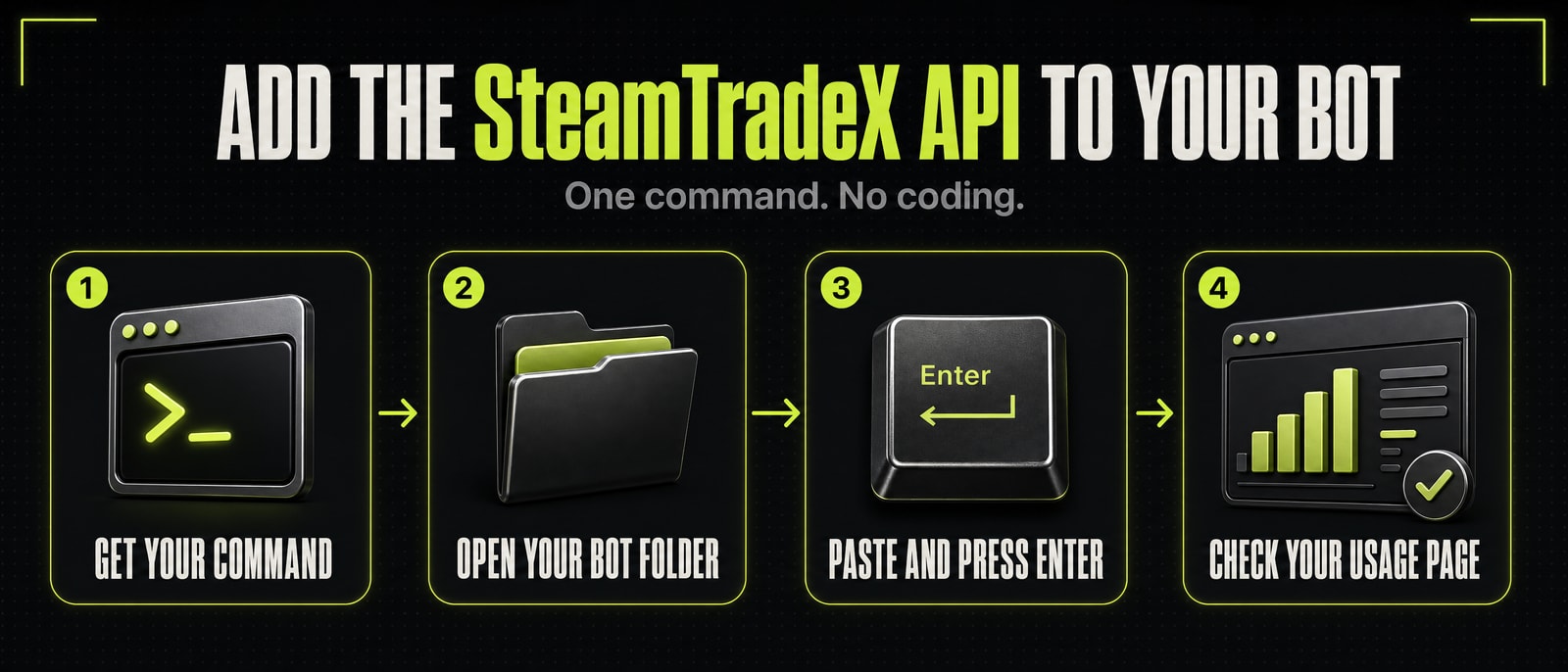
1. Get your key and your command
- Sign in and open Inventory API → API keys.
- Type a name for your bot and press Create a Key.
- Under the key you will see your command, with your key already in it. Press Copy Command.
You also need requests on your account: claim the 100 free ones, or buy some with TF2 keys from your Key Bank under Buy requests (one key buys 7,000).
2. Open your bot’s folder
Connect to the computer or server your bot runs on, the same way you do when you start or update it, and go into the bot’s folder (the one with package.json and .env in it). For example:
cd ~/levelup-bot
Not sure which folder? It is wherever you ran npm install or docker-compose up.
3. Paste the command
Paste the command you copied and press Enter. It looks like this, with your key at the end:
curl -fsSL https://steamtradex.com/downloads/steam-bot/install.sh | sh -s -- inv_your_key
You will see:
SteamTradeX: add-on installed.
SteamTradeX: key saved in .env as STEAMTRADEX_API_KEY.
SteamTradeX: bot restarted. All done.
That is it. Your bot now reads customers’ inventories through SteamTradeX.
Prefer to read it before it runs? Download it, open it, then run it. It is a short, plain text script with a comment on every step:
curl -fsSL https://steamtradex.com/downloads/steam-bot/install.sh -o steamtradex-install.sh
less steamtradex-install.sh
sh steamtradex-install.sh inv_your_key
Or read install.sh and the add-on steamtradex.js in your browser, or skip the script entirely and do it by hand.
- Docker? The same command works. It takes a minute longer because it rebuilds your bot.
- Windows with WSL? Put
sudobeforesh:... | sudo sh -s -- inv_your_key - If the last line says “now restart your bot”, restart it the way you normally do.
4. Check it is working
From another Steam account, send your bot !SELLCHECK. Then open Inventory API → Usage: the request shows up within a minute.
After a bot update, or a new key
- Updated your bot? Paste the same command again. (With Docker this is not needed: it is part of your build now.)
- New key? Paste the command again with the new key. It replaces the old one.
Going back to another inventory service
Changed your mind? One command puts your bot back exactly as it was. In your bot’s folder, paste:
curl -fsSL https://steamtradex.com/downloads/steam-bot/install.sh | sh -s -- remove
You will see:
SteamTradeX: removed. Your bot now reads inventories the way it did before.
SteamTradeX: bot restarted. All done.
It takes out everything the first command added (the add-on, your key in .env, and the line in your Dockerfile) and restarts your bot. Nothing else is touched, so:
- Going back to the service you used before? Nothing more to do. Its key is still in your
.env, and your bot uses it again straight away. - Moving to a different service? Put that service’s key in its own line in
.env, the way your bot’s tutorial shows, and restart your bot. - No service at all? Leave those lines empty. Your bot then reads inventories straight from Steam, as it did when you first installed it.
On WSL, put sudo before sh, as when you set it up. You can come back any time by pasting your SteamTradeX command again.
If something goes wrong
Every message starts with SteamTradeX: and says what to do. The common ones:
- “this does not look like your bot folder”: you are in the wrong folder. Go into the one with
package.json(step 2) and paste again. - “that does not look like a SteamTradeX key”: the key was cut off when copying. Copy the command again from the dashboard.
- “API key is not valid” in your bot’s log: the key was revoked or mistyped. Create or rotate a key and paste its command.
- “no requests left” in your bot’s log: buy more under Buy requests.
- Running the Windows .exe build? It cannot take the add-on, because everything is packed inside the .exe. Run the bot with Node (PM2, WSL or Docker), as in your bot’s own tutorial.
Stuck? Ask us on Discord and paste what the command printed.
Do it by hand, without the command
The command only does these four things. You can do them yourself instead, in your bot’s folder (with PM2 or plain Node; for Docker the command is the easier way):
- Go into the inventory library’s folder and download the add-on there:
cd node_modules/@luc4sguilherme/steam-inventory
curl -fsSL https://steamtradex.com/downloads/steam-bot/steamtradex.js -o steamtradex.js
- In the same folder, open
index.jsand add this as its last line:require('./steamtradex.js')(module.exports); - Go back to your bot’s folder (
cd ../../..), open.envand add your key on a line of its own:STEAMTRADEX_API_KEY="inv_your_key"
- Restart your bot the way you normally do.
After a bot update that reinstalls node_modules, repeat steps 1 and 2. To undo it, delete the line from index.js and the key from .env, then restart.
Wrote your own bot?
Ask for a page of any public inventory like this:
GET https://steamtradex.com/api/inventory/{steamid}/{appid}/{contextid}?count=2000
X-API-KEY: inv_your_key
The answer is Steam’s own inventory JSON, so code written for Steam reads it unchanged. Every parameter, error and code example is in the Inventory API docs.
What the command does
For the curious. You do not need any of this to use it.
- Your bot reads inventories with a small open-source library,
@luc4sguilherme/steam-inventory(MIT licence, which allows adding to it). The command adds the SteamTradeX add-on to that library. Your bot’s own code is not touched. - It saves your key in
.envasSTEAMTRADEX_API_KEYand restarts the bot. With Docker, it also adds one line to yourDockerfileso every rebuild keeps the add-on. - While the key is set, customers’ inventories are read through SteamTradeX. Your bot’s own inventory is read with its own Steam login whenever the bot is signed in, which costs nothing. If you ever see your bot’s own SteamID on the Spending page, keep the bot’s inventory public; those reads then use requests like any other.
- Reads made with a customer’s own Steam key (
BOT_HANDLE_CUSTOMER_STEAM_API_KEY) stay as they are and cost nothing. - It never sees or touches your bot’s Steam login. Your bot signs in and trades exactly as before.
- Read it first if you like: install.sh and the add-on steamtradex.js. SHA-256 of the add-on:
ad88cc8d9923a837c8500a906b9d73c842f9dbf3e552a40b39ce20c871184b85